
FREE
For Windows 7, Vista, XP
FlipBookMaker PDF To JPG (Freeware)
Convert your PDF file into JPG in a time!!

- Why Us?
- Screenshots
- How It Works
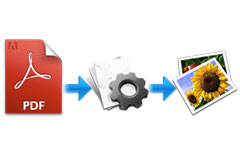
FlipBookMaker PDF to JPG is powerful software to convert your PDF file to image with JPG format. There are many advantages of converting a PDF file into a JPG file. One of the advantages of is that the JPG conversion supports multiple document conversion and this format also improves the data accessibility to a great deal. However, it won’t damage original quality of the data nor distort the original files. First of all, the users friendly interface makes users get start to convert PDF file to JPG without any help. With FlipBookMaker PDF to JPG, users can convert PDF file into JPG in three steps. Just select a mode, add PDF file and convert it into JPG. Anyway, users can select the convert page range and JPG DPI. However, FlipBookMaker PDF to JPG provides a free way to convert PDF file into JPG in a minute.
Absolutely Freeware to download and use

FlipBookMaker PDF to JPG is powerful convert to convert PDF file into JPG. It is absolutely free to download and convert your PDF file. There is no need to register at all. Just open it and get start to use. We guarantee that you won’t pay any for FlipBookMaker PDF to JPG software.
Easy to import PDF and simple to convert to JPG
Flexible operation modes to choose
Batch convert mode
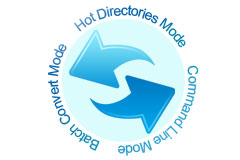
In this mode, users enable to add a PDF folder at the same time. Then FlipBookMaker PDF to JPG will convert your PDF one by one but on merge them in one.
Hot directories mode
In this mode, you can select the input PDF path and output JPG path even log file path. There are three buttons to make your convert under control.
Command line mode
In this mode, you can select the input PDF path and output JPG path even log file path. There are three buttons to make your convert under control.
PDF & JPG Setting of FlipBookMaker PDF to JPG
No matter what kind of mode you choose, there is a setting button allows you to set up the convert PDF and JPG. It supports you to make converted PDF rang and name the output JPG files. What’s more, it enables users to adjust the DPI of JPG based on needs. However, users can choose the quality of JPG file as well.